Can You Write a Long Draft in Notion, Obsidian or Google Docs?
Can you write a long draft in Notion, Obsidian or Google Docs? Where each works, where it breaks at length, and the workarounds that keep you going.
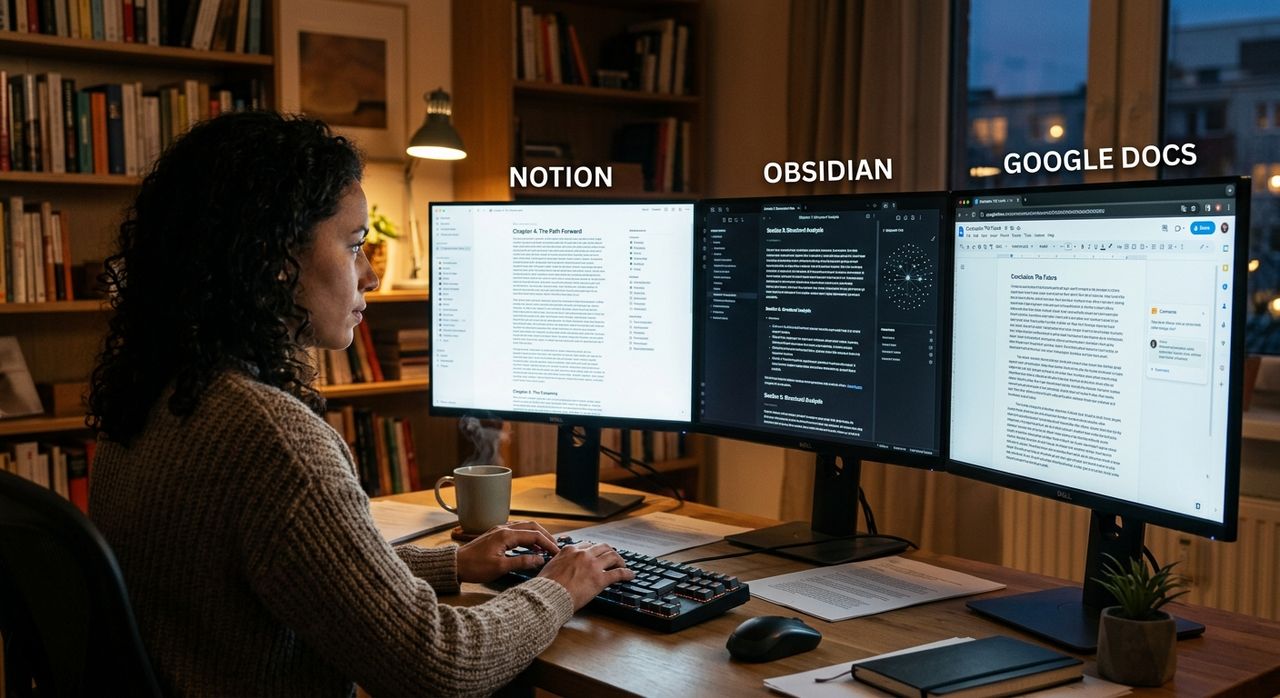
Yes, you can. Plenty of books, theses and long reports have been written in Notion, Obsidian and Google Docs. They're good tools, and you probably already know them well.
The catch is length. At a few thousand words, any of them feels fine. At fifty thousand words with a folder of sources, weeks between sessions and a reviewer waiting, each one starts to strain in its own way.
This guide covers where each tool works, where it breaks for long drafts, the workarounds that help if you stay, and when a dedicated writing workspace is worth the switch.
Key points:
1. Notion, Obsidian and Google Docs all handle long drafts, but each strains in a different place.
2. The common pain points are research next to the draft, getting back in after a break, version sprawl and review.
3. Good workarounds exist, and a dedicated workspace earns its place when those workarounds start eating your writing time.
Why People Draft in the Tools They Already Use
It makes sense. The tool is already open, your notes are already there and you don't have to learn anything new. Starting a draft where you already think feels natural.
There's also a real cost to switching. Moving notes, rebuilding folders and learning new shortcuts takes time you'd rather spend writing. So most people start in the familiar tool and only question it when something goes wrong.
That's a reasonable approach. The trick is knowing which problems are coming, so you can plan around them.
Notion: Flexible, but Heavy at Length
Notion is excellent for organising. Databases let you track chapters, sources and deadlines, and real-time co-editing makes it great for team wikis and planning.
Where it works well:
- Planning a book in a database, with a row per chapter and a status column.
- Keeping research pages, interviews and ideas linked together.
- Working with a team that already lives in Notion.
Where it strains:
- Very long pages can feel slow and are awkward to move around in.
- Research sits on other pages, so writing with a source open means juggling tabs.
- It's built for many people editing at once, not for a single author's quiet drafting.
Our Notion versus Strut comparison is candid about where Notion is simply the better choice, especially for team knowledge bases.
Obsidian: Local, Linked and Endlessly Customisable
Obsidian is a free app that stores notes as local Markdown files in a folder called a vault. It's fast, private and built around linking notes to each other, with a huge plugin library.
Where it works well:
- Building a web of linked research notes over months or years.
- Writing offline, with your files fully under your control.
- Shaping the tool exactly how you like it with plugins.
Where it strains:
- A long draft usually means many files, and assembling them depends on plugins or your own system.
- Sharing a draft for review isn't built in, so you'll export and send it elsewhere.
- Tuning plugins can quietly replace actual writing.
If you love your vault, the Obsidian comparison page explains how the two approaches differ and when to keep Obsidian.
Google Docs: Easy to Share, Messy to Manage
Google Docs is free, familiar and has the best real-time co-editing and suggestion mode around. For anything that needs lots of people commenting, it's hard to beat.
Where it works well:
- Short to medium documents that several people edit together.
- Getting quick feedback through suggestions and comments.
- Writing anywhere with a browser.
Where it strains:
- One huge document gets slow, but splitting it into chapter files scatters your draft.
- Research lives in other docs, PDFs and bookmarks.
- Copies multiply: "Draft v3 FINAL", "Draft v3 FINAL edits", and so on.
The Google Docs comparison covers when Docs is still the right call, particularly for live co-editing.
Where Each Tool Breaks at Length
Here's a side-by-side view of the four pressure points that show up in long projects.
| Pain point | Notion | Obsidian | Google Docs |
|---|---|---|---|
| Research next to the draft | On separate pages; tab juggling | Linked notes work well; source handling depends on plugins | Scattered across docs, files and bookmarks |
| Re-entry after a break | Depends on how tidy your databases are | Depends on your own linking system | No built-in sense of where you left off |
| Version sprawl | Page history exists, but duplicates creep in | Relies on plugins or your own backups | Version history, plus many "final" copies |
| Review | Strong for live co-editing | Not built in; export first | Excellent comments and suggestions |
Re-entry means getting back into a project after days or weeks away. On long work it's one of the biggest hidden costs, because you lose momentum reconstructing where you were.
Practical Workarounds If You Stay
If your tool mostly works, these habits fix a lot:
- Keep a project home page. One page with your central claim, the chapter list and a status for each.
- Write a next-step note at the end of every session. One line: what you'll do next time. It makes re-entry much faster.
- Name versions by date and purpose. For example "2026-09-28 sent to editor", not "final2".
- Keep a sources page per chapter. List each source with the exact page you relied on.
- Split the draft sensibly. One document per chapter, with a single outline page linking them in order.
- Freeze a copy before review. Share a snapshot so feedback lands on a fixed version.
When a Dedicated Workspace Is Worth It
Switch when the workarounds start costing more time than they save. Some signs:
- You spend the first half hour of each session finding your place.
- You can't quickly trace a claim back to its source and page.
- You have several "final" versions and aren't sure which one your reviewer read.
That's the problem Strut was built for. Rough notes with voice capture and page-tagged clips sit in the same project as your sources and draft. The long-form document editor has outline views from headings, word goals, automatic version checkpoints and a compare view for two versions.
And the AI writing workspace works on a passage you select, so you can ask for a critique or a summary without it writing the draft for you.
Strut isn't for everyone. It's browser-based, needs a connection and does asynchronous review rather than live co-editing. If you rely on offline work or simultaneous editing, stay where you are and use the workarounds above.
The Short Version
You can write a long draft in Notion, Obsidian or Google Docs. Each strains in its own way at length: research drifts away from the draft, re-entry gets slow, versions multiply and review gets messy. Use a project home page, next-step notes and dated versions to stay productive, and move to a dedicated workspace once those workarounds start eating your writing time.
Write your next long piece in Strut
Keep rough notes, sources and drafts in one project, with AI that works on the passage you select rather than replacing your voice.